
Use Respond → Incidents to find an investigation and open its detail page. The queue is tenant-scoped, and each incident detail is available only to signed-in users whose role permits access.
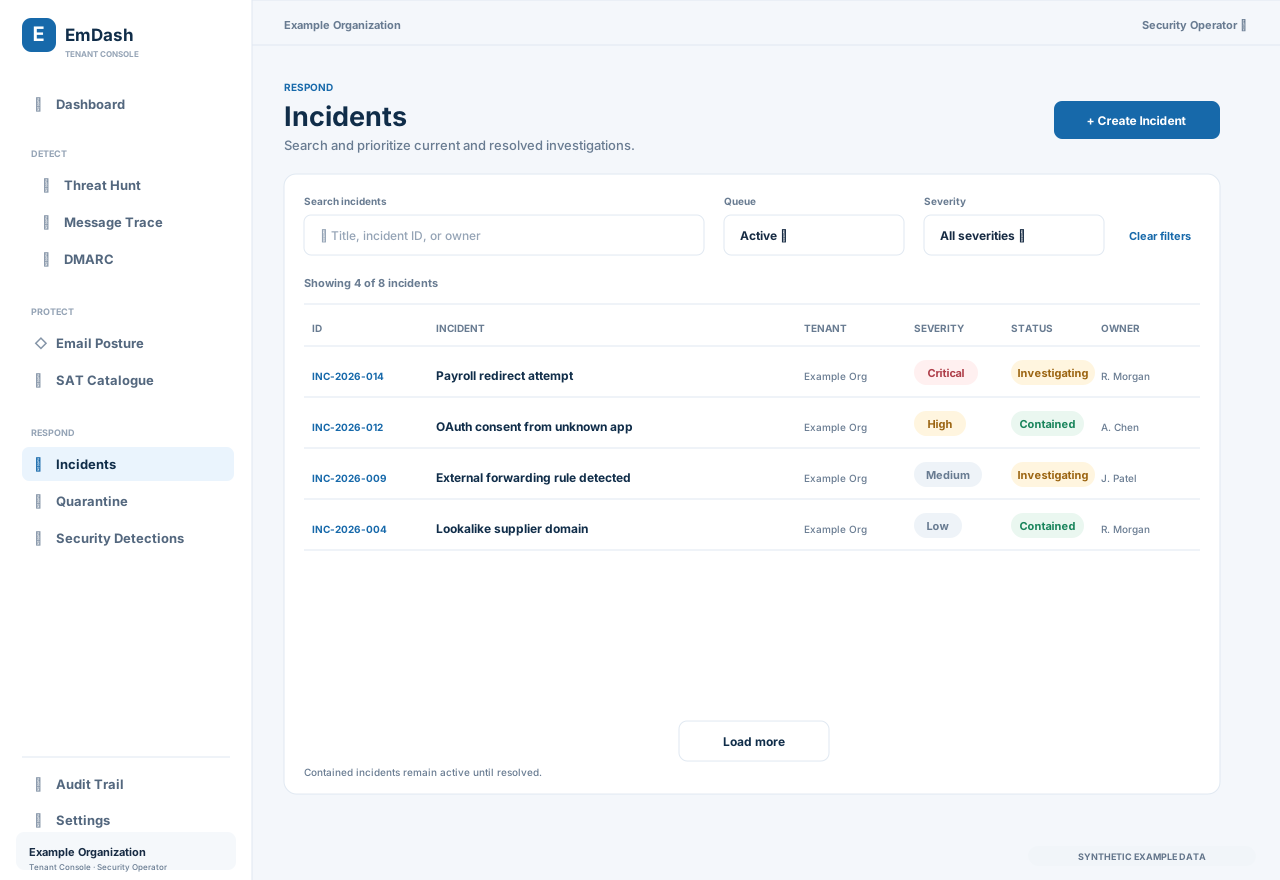
Find incidents
Enter a few words in Search incidents. Search matches incident titles, display IDs (for example, INC-2026-014), and owner names. Search is applied after a short pause as you type. The search term is kept in the page URL, so you can copy a filtered view for another authorized teammate.
Choose a queue and severity
The Queue filter has three choices:
- Active is the default and shows unresolved incidents.
- Resolved shows incidents that have been resolved.
- All incidents includes both active and resolved records.
Contained incidents remain in Active until someone resolves them. Containment records a response step; it does not mean the investigation and follow-up are complete.
Use Severity to narrow the selected queue to Critical, High, Medium, or Low. Queue, severity, and search filters are reflected in the URL. A copied URL preserves the view for a teammate, but access still depends on their sign-in, tenant, and role.
Select Clear filters to remove the search and severity filter and return to the default Active queue.
Work through the results
The result count shows how many matching incidents are loaded out of the filtered total. The queue loads up to 50 records at a time. Select Load more to append another page; the current filters stay in place. The list is ordered consistently while you page through the results.
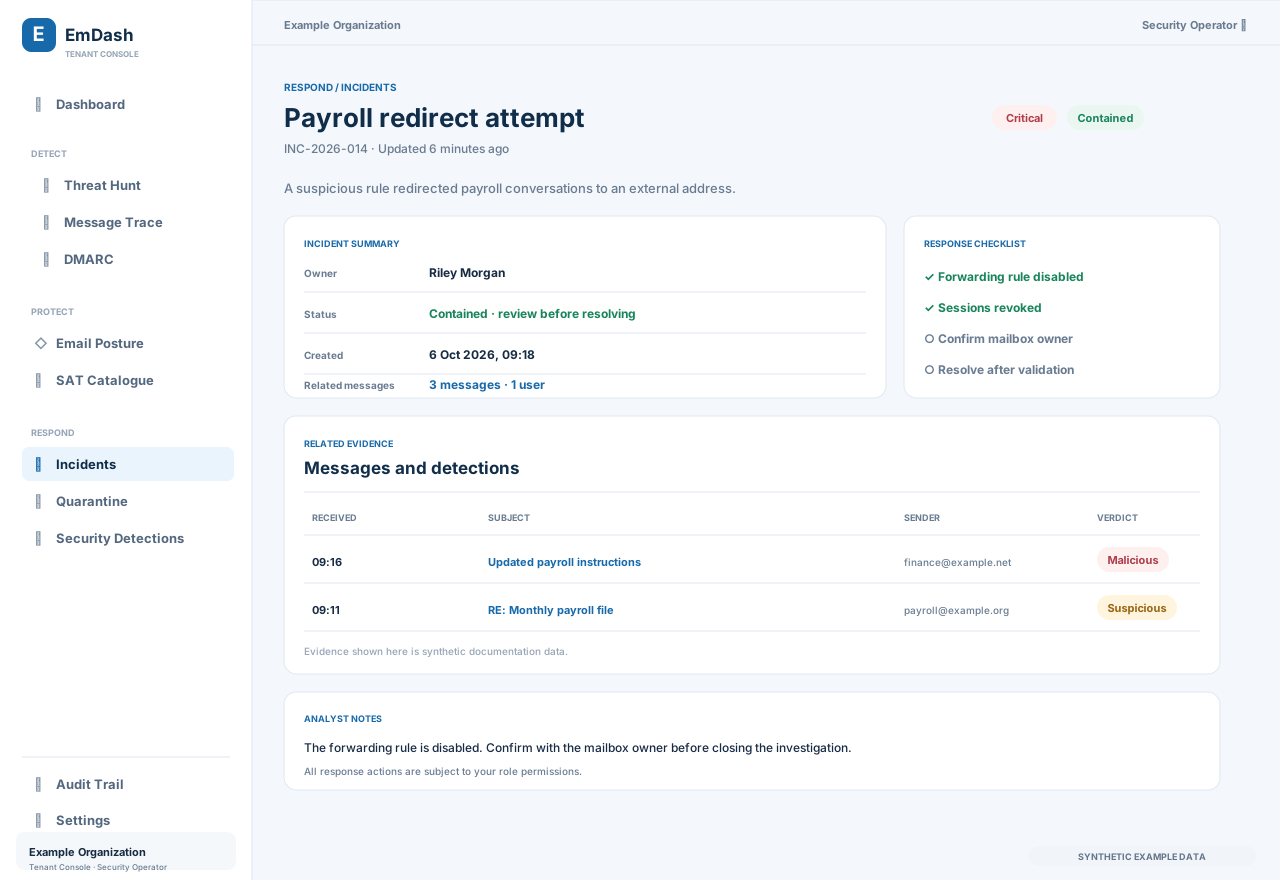
Select an incident title to review related messages, detections, indicators, attachments, collaboration, and analyst notes. What you can view or change on the detail page depends on your role and the action permissions for that workflow.
Understand empty results
An empty Active queue means there are no unresolved incidents. An empty Resolved queue means none have been resolved yet. If a search term or severity filter produces no matches, the page identifies that as a filtered result and lets you change or clear the filters.
For dashboard shortcuts, see the Dashboard guide. It explains how the Active Incidents card and Priority Queue link to incident and other relevant detail pages.